
WordPress Site Health Check: 9 Tests Every Website Owner Can Run
Learn how to check your WordPress site's health with practical tests for performance, security, email delivery, broken links, scheduled tasks, and website functionality.
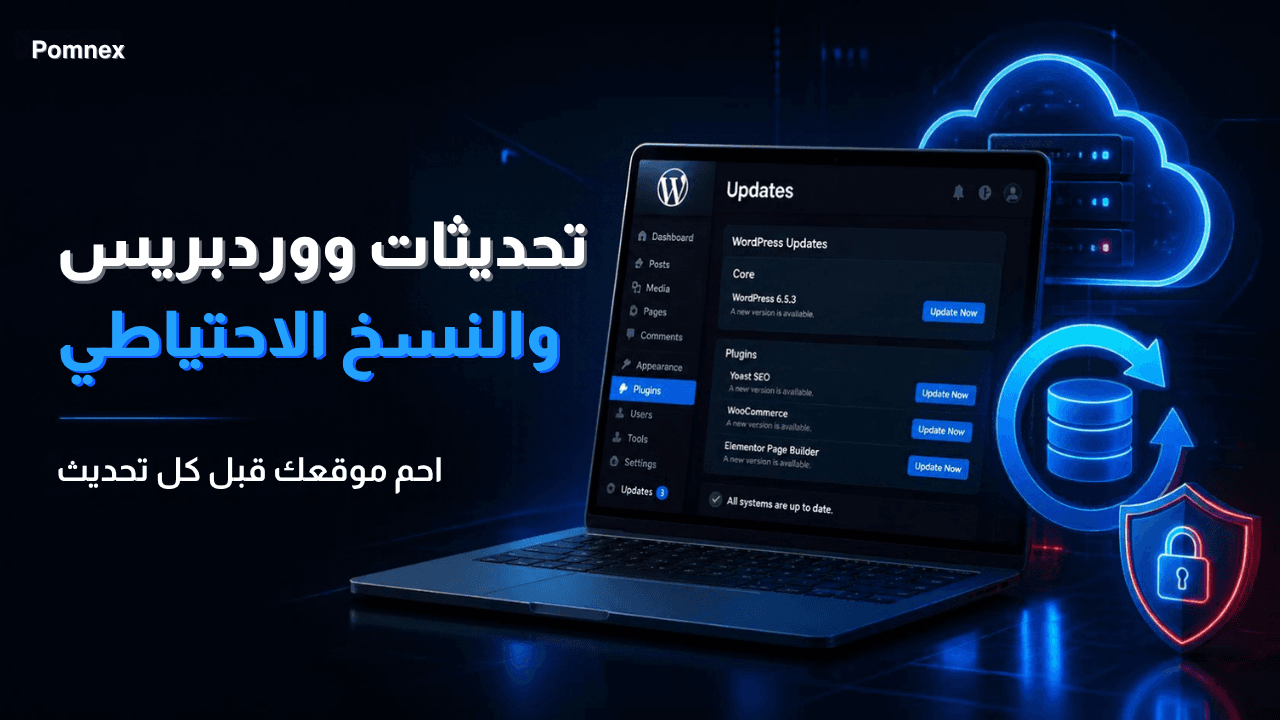
A WordPress website can appear to work normally while hidden technical issues affect its performance, security, or functionality.
Contact forms may stop delivering messages, scheduled tasks may fail, outdated plugins may introduce security risks, and backups may exist without being usable.
The good news is that you don't need to be a developer to perform several important health checks.
In this guide, you'll learn nine practical tests to help you identify common WordPress problems before they affect your visitors or business.
1. Check WordPress Site Health
WordPress includes a built-in Site Health tool that provides information about your website's configuration and highlights issues that may need attention.
To access it:
Log in to your WordPress dashboard.
Navigate to Tools → Site Health.
Review the Status and Info tabs.
Read any recommendations or critical issues displayed.
Pay particular attention to outdated PHP versions, inactive security features, database problems, and configuration warnings.
Not every recommendation requires immediate action. Review each message and determine whether it applies to your hosting environment and website configuration.
Read the official WordPress Site Health documentation for more details.
2. Test Your Website's Loading Speed
A website can be accessible but still provide a frustrating experience because its pages load slowly.
Test important pages, including your homepage, service pages, contact page, and product pages if you operate an online store.
Use Google PageSpeed Insights to examine performance on mobile and desktop devices.
Look for issues such as:
Large, unoptimized images.
Render-blocking CSS or JavaScript.
Slow server response times.
Excessive scripts and unnecessary plugins.
Poor Largest Contentful Paint (LCP) results.
Avoid focusing on a single performance score. Investigate the underlying recommendations and prioritize issues that affect real users.
Repeat the test after major changes to your theme, plugins, caching configuration, or hosting environment.
3. Review WordPress Core, Plugin, and Theme Updates
Outdated software can introduce security vulnerabilities and compatibility problems.
Open Dashboard → Updates and review available updates for WordPress, plugins, and themes.
Before applying significant updates:
Create a recent backup.
Review important plugin or theme compatibility notes.
Test major changes on a staging site when possible.
Update carefully and verify that essential features still work.
Security updates deserve particular attention, especially when they address known vulnerabilities. However, avoid installing updates blindly on a business-critical website without considering the risks and preparing a recovery plan.
After updating, test your homepage, login process, forms, checkout, and other important functions.
You can use this plugin, which we developed and published in the official WordPress Plugin Directory. It is an open-source project that allows you to monitor specific important pages on your website before and after updates and notify you if any issues occur on those pages.
The plugin is called Pomnex Update Check.
4. Test Contact Forms and Email Delivery
A contact form may display a success message even when the notification never reaches your inbox.
Submit a test message through every important form on your website. Confirm that:
The form accepts valid information.
The confirmation message appears correctly.
The email reaches the intended recipient.
The message does not consistently land in spam.
Any connected CRM or automation receives the submission, if applicable.
If you run an online store, test order notifications and other transactional emails as well.
When messages fail to arrive, investigate your SMTP configuration, email provider, domain authentication, and relevant plugin logs.
Repeat these tests after changing email settings, installing a form plugin, or modifying notification rules.
5. Check Important Links and Website Pages
Broken links and missing pages can frustrate visitors and interfere with important customer journeys.
Manually inspect your most valuable pages, including:
Homepage and main navigation.
Contact and service pages.
Pricing and checkout pages.
Login, registration, and account pages.
Important landing pages linked from search results or marketing campaigns.
Click the main calls to action and confirm that each one leads to the intended destination.
Look for unexpected 404 errors, redirect loops, broken images, and links pointing to outdated URLs.
After changing your permalink structure, moving a page, or redesigning navigation, repeat the checks. Make sure important redirects work correctly and that valuable pages remain accessible.
6. Verify Scheduled Tasks and Background Processes
WordPress relies on scheduled tasks for activities such as publishing scheduled posts, running certain plugin operations, and processing recurring jobs.
These tasks may not run as expected if the site receives little traffic, server configuration interferes with execution, or a plugin encounters an error.
Look for warning signs such as:
Scheduled posts publishing late.
Automated emails not being sent.
Recurring plugin operations failing.
Background jobs remaining incomplete.
WooCommerce actions becoming overdue.
If you notice these symptoms, investigate WordPress cron behavior and the relevant plugin or server logs.
For more demanding websites, a properly configured system cron job may provide more predictable scheduling than relying exclusively on visitor-triggered WP-Cron.
Avoid changing cron settings without understanding the existing hosting configuration.
7. Review Security and User Permissions
Security checks should be part of regular WordPress maintenance, not something you perform only after a suspected attack.
Start by reviewing your user accounts and removing access that is no longer required.
Check that:
Administrator access is limited to trusted users who need it.
Former employees or contractors no longer have unnecessary access.
Strong passwords and appropriate authentication protections are enabled.
WordPress core, themes, and plugins receive security updates.
Your security tools are functioning and reporting correctly.
Also review suspicious login activity, unexpected file changes, unfamiliar plugins, and unusual administrator accounts.
If you suspect that your site has been compromised, avoid treating a routine plugin scan as proof that the website is clean. Investigate the incident, preserve relevant evidence, and follow a proper recovery process.
If your WordPress site has been hacked, read our guide: Your WordPress Site Was Hacked: What to Do in the First Hour.
8. Confirm That Your Backups Are Working
Having a backup plugin installed does not guarantee that you can recover your website when something goes wrong.
Check your backup system and confirm that:
Recent backups completed successfully.
The backup files are accessible.
Copies are stored somewhere separate from the live website when possible.
Important database content and website files are included.
The backup schedule matches how frequently your data changes.
An online store, membership platform, or business website that receives frequent submissions may require more frequent backups than a small personal blog.
Most importantly, test restoration in a safe staging environment. A successful backup log does not prove that every file is complete or that the database can be restored correctly.
For further guidance, see the official WordPress backup documentation.
9. Test Critical Website Functions
A website can load correctly while important features remain broken.
Create a short list of the functions your business depends on and test them periodically.
For a business website, this may include:
Contact and quote request forms.
Navigation menus and search.
User registration and login.
Download links and gated content.
Booking or appointment forms.
For a WooCommerce store, also test product pages, cart behavior, checkout, payment processing, order confirmation, and customer account access.
Use a staging environment for tests that could create real orders, charge payment methods, send customer notifications, or modify production data.
After major updates or configuration changes, repeat the relevant tests to make sure the website still supports its intended customer journey.
How to Turn These Checks Into a Practical Routine
You don't need to perform every test every day. Build a maintenance routine based on your website's purpose, complexity, and business importance.
Website availability: Use automated monitoring to detect downtime.
Email and contact forms: Test periodically and after significant configuration changes.
WordPress and plugin updates: Review regularly and prioritize security issues according to their severity.
Performance: Check periodically and after major website changes.
Important links and pages: Review regularly and after navigation or URL changes.
Scheduled tasks: Investigate when automated operations fail or run late.
Security and user accounts: Review permissions and security alerts regularly.
Backups: Verify successful completion according to your data's importance and rate of change.
Backup restoration: Test recovery periodically in a safe environment.
These are general guidelines, not fixed deadlines. An online store or business-critical platform usually requires closer monitoring and more frequent recovery checks than a simple personal blog.
The key is consistency. A small, repeatable maintenance routine is more useful than waiting until a technical issue affects your visitors.
When Should You Get Professional Help?
Basic health checks can reveal many common problems, but some issues require technical investigation.
Consider professional assistance if your website repeatedly experiences downtime, unexplained performance problems, failed backups, recurring compatibility errors, suspicious activity, or broken business-critical functions.
A structured maintenance process can help detect issues earlier, reduce recovery time, and protect your website's reliability.
If you need help keeping your website secure, monitored, and up to date, explore Pomnex WordPress maintenance services.
Final Thoughts
A WordPress site health check is not a one-time task. It is an ongoing process that helps you identify problems before they become costly disruptions.
By checking performance, updates, email delivery, security, scheduled tasks, backups, and essential website functions, you can build a clearer picture of your site's condition.
Start with the checks most relevant to your business, document any recurring issues, and turn the process into a regular maintenance routine.
If you would like us to handle that for you, please contact us.
Related articles
wordpress-maintenanceWordPress Security
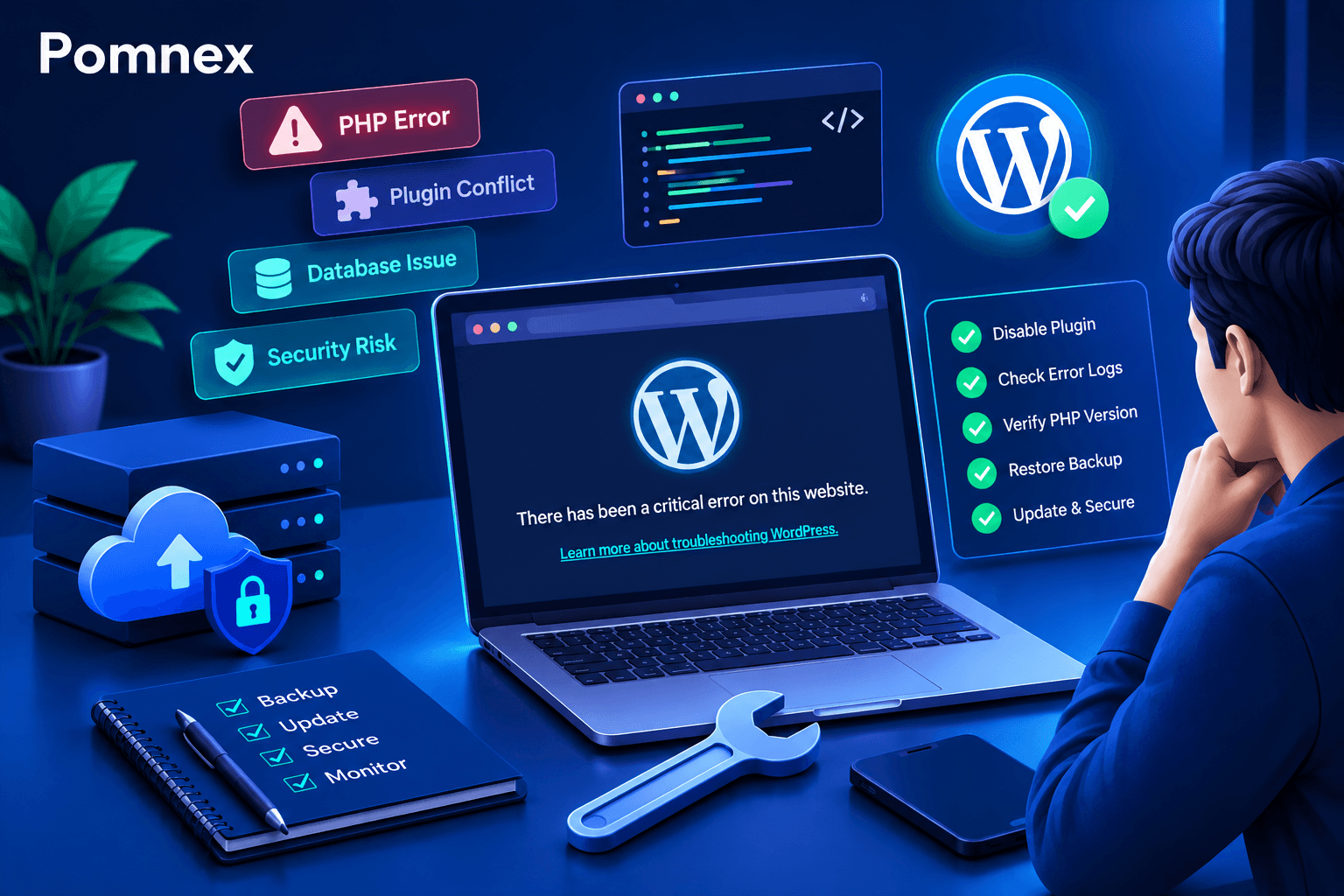
How to Fix the WordPress Critical Error After a Plugin Update
Did a plugin update trigger a critical error on your WordPress site? Learn how to identify the cause, check error logs, disable the faulty plugin, and safely restore your website.
wordpress-maintenance
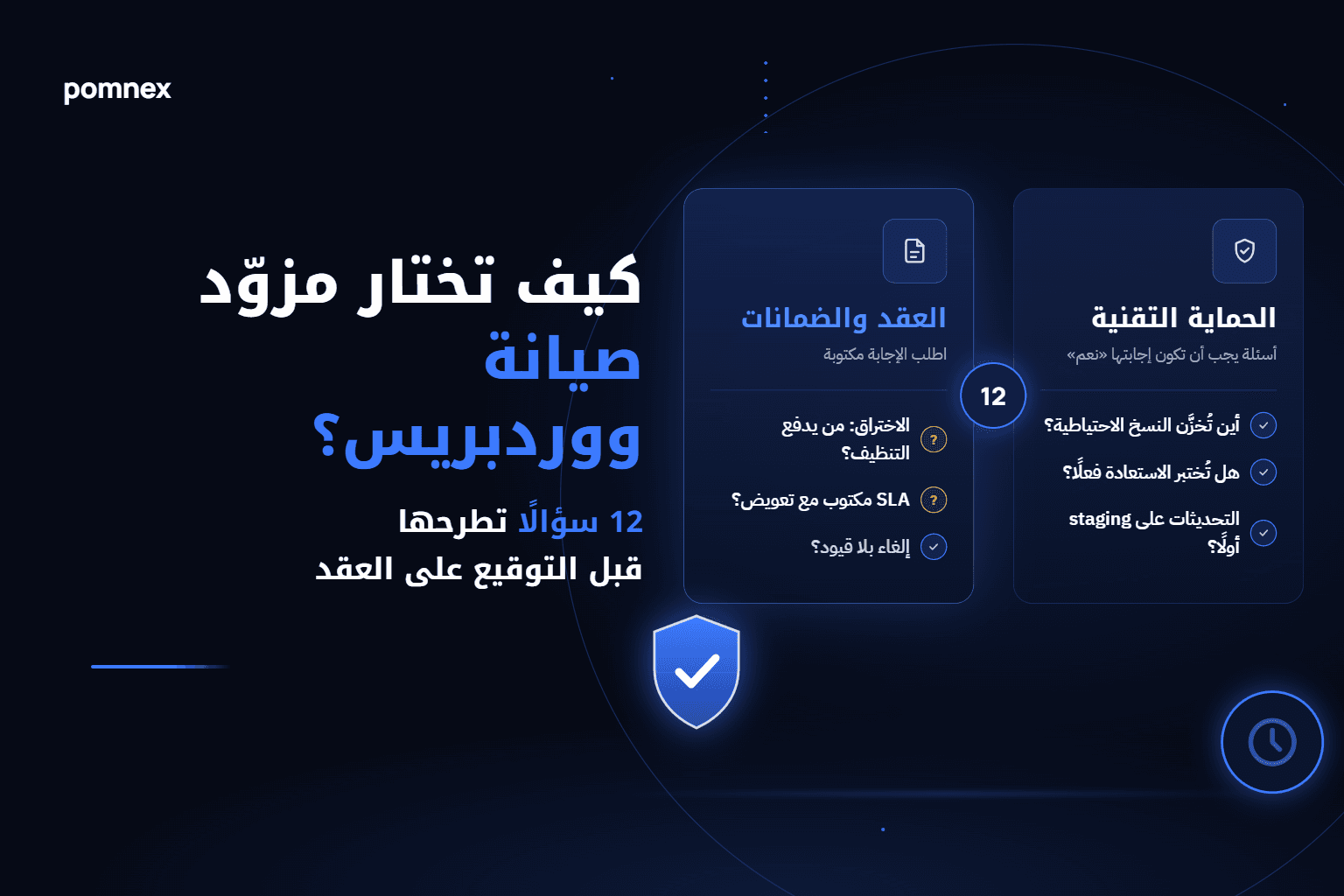
How to Choose a WordPress Maintenance Provider: 12 Questions to Ask Before You Sign
Before you sign with a WordPress maintenance provider, ask: where are backups stored, are restores tested, are updates staged first, who pays when you're hacked? An honest checklist plus a comparison of provider types.
wordpress-maintenance
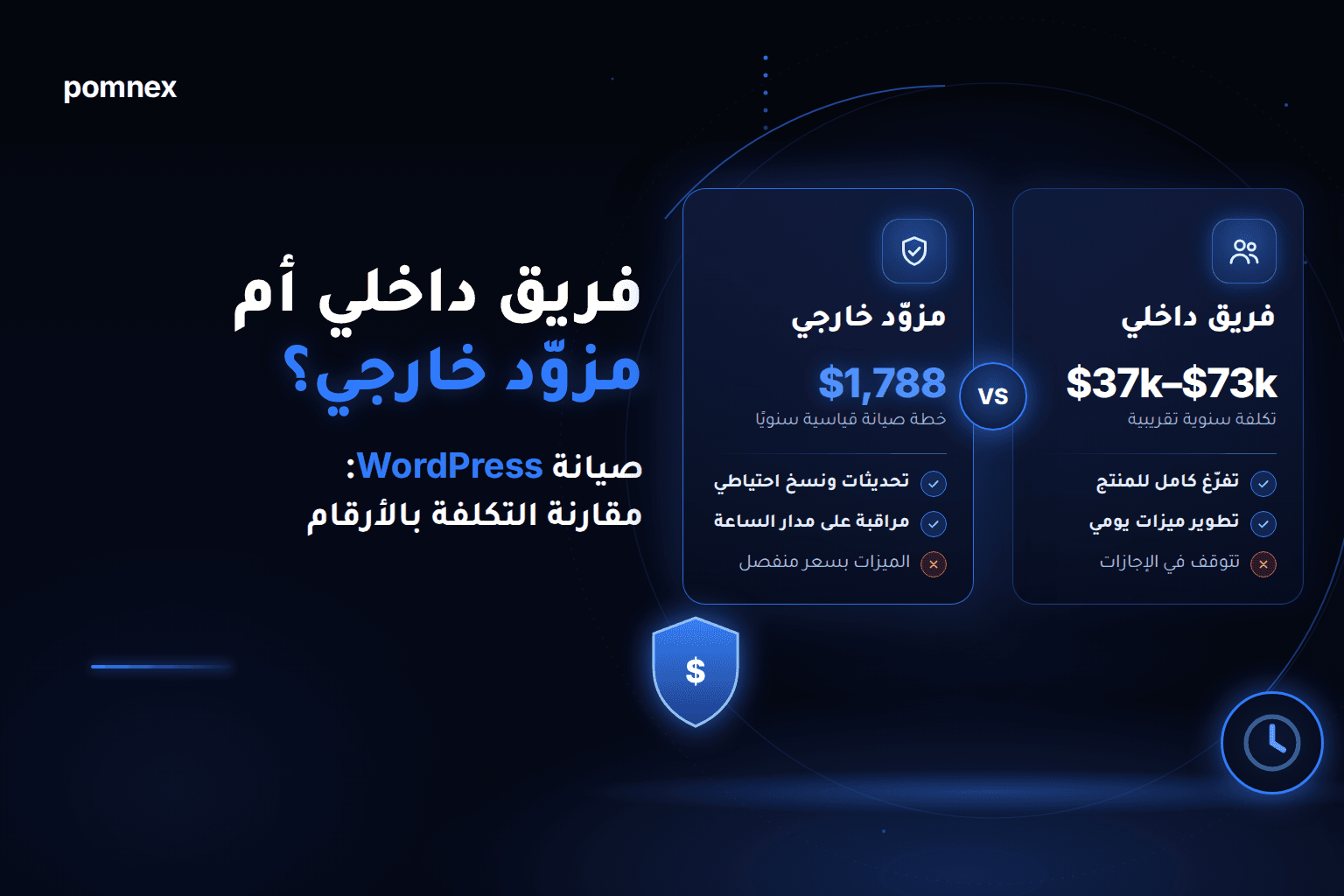
In-House WordPress Developer vs. Outsourced Maintenance: The Real Cost, in Numbers
Hire a WordPress developer or outsource maintenance? We compare published salaries in the UAE, Saudi Arabia, Germany and the UK with a $149/month plan, and explain when an in-house team wins