
wordpress-maintenanceWordPress Security
How to Fix the WordPress Critical Error After a Plugin Update
Did a plugin update trigger a critical error on your WordPress site? Learn how to identify the cause, check error logs, disable the faulty plugin, and safely restore your website.
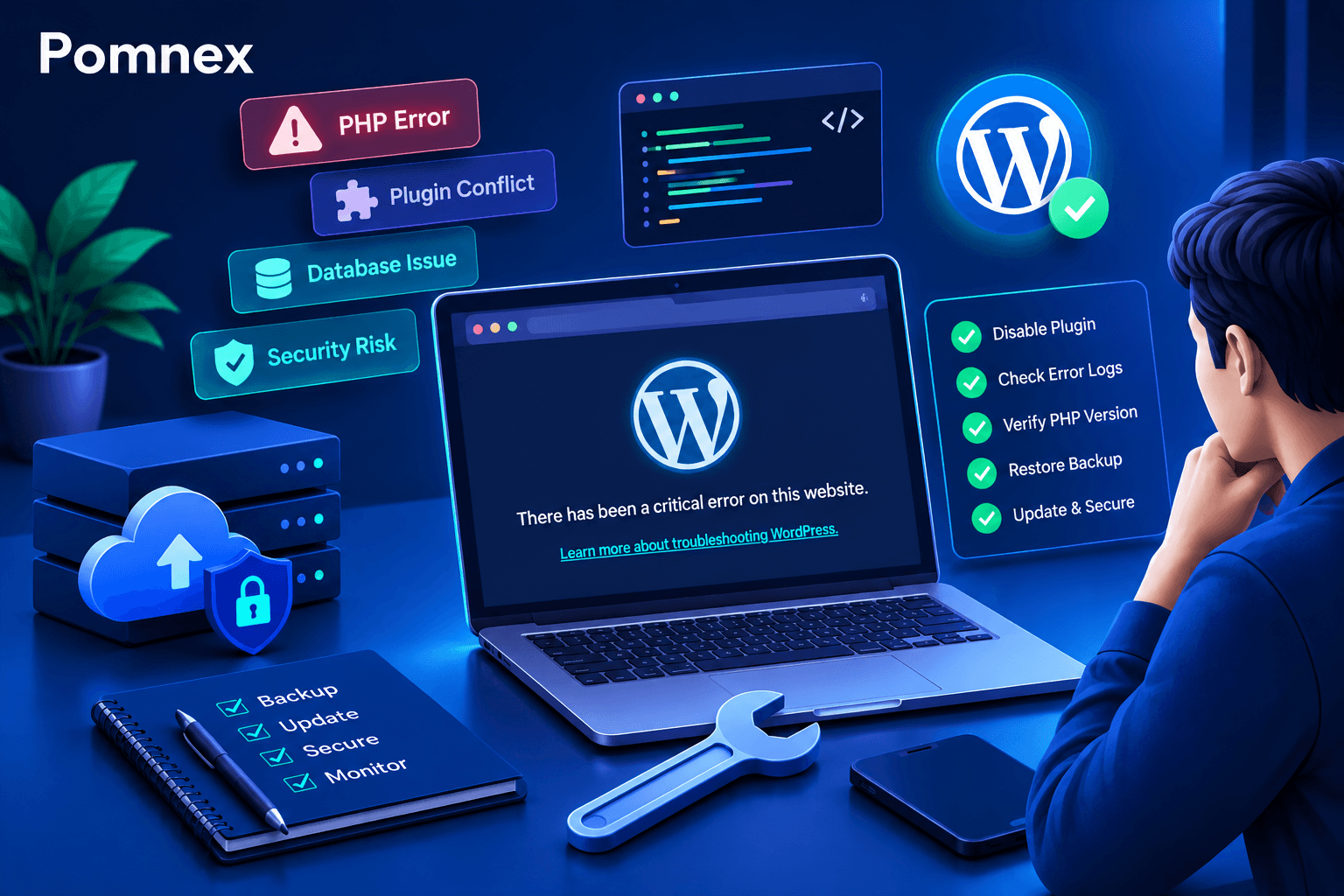
How to Fix the WordPress Critical Error After a Plugin Update
A WordPress critical error can appear unexpectedly after updating a plugin, a theme, or PHP. It may prevent you from accessing the dashboard or disrupt important website features. If you run an online store, the issue could also affect checkout, order processing, or the customer experience.
The good news is that a critical error does not necessarily mean your website is lost or that WordPress needs to be reinstalled. In many cases, you can identify the cause and restore your site by following a structured troubleshooting process.
In this guide, you will learn how to fix a WordPress critical error, identify a faulty plugin or file, inspect error logs, and safely restore your website.
What Is a WordPress Critical Error?
A critical error is a failure that prevents WordPress from executing essential code required to display the website or run one of its features.
You may see a message such as:
There has been a critical error on this website.
WordPress may also send an email to the site administrator explaining that a technical issue has occurred and providing a link to Recovery Mode.
Common causes include:
A plugin update that conflicts with another plugin.
A plugin or theme that is incompatible with the PHP version running on the server.
A programming error in a PHP file.
Exhausted memory available to a process.
An incomplete update or corrupted files.
A conflict between the active theme and a plugin.
If the error appeared immediately after updating a plugin, that update is a useful starting point for your investigation. However, timing alone does not prove that the plugin is responsible.
Step 1: Avoid Making Random Changes
Before modifying files or disabling plugins, take a few precautions:
Confirm that a recent backup of your website files and database is available.
Record when the error appeared and which updates were performed beforehand.
If parts of the site still work, identify the affected pages and features.
Do not immediately delete the suspected plugin or modify WordPress core files.
If you run an online store, check the status of orders and payments before restoring an older backup.
Whenever possible, perform troubleshooting in a staging environment rather than directly on your production website.
If you run an online store, a technical failure can affect more than page availability: it may interrupt checkout or prevent orders from being completed. Read our guide to WooCommerce maintenance to learn more about checkout testing, failed-order monitoring, and backup strategies for stores.
Step 2: Try WordPress Recovery Mode
In some cases, WordPress emails the site administrator when it detects a fatal PHP error.
The email may contain a Recovery Mode link that allows you to access the dashboard and deactivate the plugin or theme responsible for the issue.
Follow these steps:
Check the email account associated with your WordPress administrator.
Look for a technical issue notification from WordPress, including the spam folder.
Open the recovery link and follow the instructions.
If you regain dashboard access, temporarily deactivate the plugin identified in the notification.
Test the website again and investigate the cause before reactivating the plugin.
Recovery emails are not available in every situation, and Recovery Mode cannot resolve every type of failure.
If you cannot access the website, continue with the following steps.
The official WordPress Recovery Mode documentation explains how Recovery Mode can help you regain dashboard access after certain fatal PHP errors and troubleshoot the affected plugin or theme. If you do not receive a recovery email, continue with the alternative troubleshooting methods in this guide.
Step 3: Disable the Suspected Plugin Through FTP
If the dashboard is unavailable, you may be able to access your website through FTP, SFTP, or your hosting control panel's file manager.
Before changing anything, confirm that you are working with the correct website files and have a backup.
How to Disable a Single Plugin
Connect to your website using an FTP client or your hosting file manager.
Navigate to the WordPress installation directory.
Open
wp-content/plugins/.Locate the plugin you recently updated or the one identified in your error logs.
Temporarily rename its directory, for example by adding
-disabledto the name.Reload the website and dashboard to see whether the error disappears.
For example, you could rename a directory from example-plugin to example-plugin-disabled.
This prevents WordPress from loading the plugin under its original directory name, but it does not repair the plugin's files or necessarily resolve the underlying conflict.
If the website starts working again, the plugin may be involved. Review the error logs before drawing a final conclusion, because the underlying issue could involve compatibility, another plugin, or the active theme.
Important: Do not rename directories randomly or disable every plugin on a production website without considering the impact, especially when essential features depend on them.
Step 4: Enable Error Logging to Identify the Cause
If the error persists or you cannot identify the responsible component, PHP error logs may help you locate the file and line where the failure occurred.
Start by checking the error logs provided by your hosting control panel. Some hosts provide separate logs for PHP and server errors.
If you need WordPress debug logging, open wp-config.php after making a backup.
Before the line containing the comment That's all, stop editing!, add the following settings, or update them if they already exist:
define( 'WP_DEBUG', true );
define( 'WP_DEBUG_LOG', true );
define( 'WP_DEBUG_DISPLAY', false );
If you use automatic updates, review the official WordPress documentation on plugin and theme auto-updates. It recommends maintaining regular backups so you have a recovery option if an update fails.
Save the file and reproduce the error. Then check:
wp-content/debug.log
You might see an entry similar to this:
PHP Fatal error: Uncaught Error:
Call to undefined function example_function()
in /wp-content/plugins/example-plugin/includes/main.php:125
This is an illustrative example, not a log from a real website. In this example, the path points to a plugin file, and line 125 provides a useful starting point for investigation.
Not every error appears in this file. You may need to inspect PHP or server logs instead. Debug logging can also expose sensitive technical information, so do not leave debugging enabled unnecessarily.
After troubleshooting, restore the appropriate production settings, stop logging when it is no longer needed, and remove the debug log when you are certain it is no longer required, subject to your log-retention policies.
Step 5: Check PHP Compatibility
A critical error may appear after a plugin update because the new code relies on functions unavailable in the current PHP version or conflicts with other components.
To investigate:
Check the PHP version currently configured by your hosting provider.
Review the requirements of your plugin, theme, and WordPress version.
Look for error messages involving undefined functions, syntax errors, or exceptions.
Review the plugin's changelog and stated compatibility.
If a PHP update may be responsible, consult your hosting provider and test a compatible version in a staging environment.
Do not change the PHP version randomly on a production website. An incompatible version may cause additional failures. Choose a supported version that works with all essential components of your site.
Step 6: What If the Error Persists After Disabling the Plugin?
If the website does not recover after disabling the suspected plugin, do not assume that you should disable everything or reinstall WordPress.
Follow this troubleshooting sequence:
Check the theme: If the error log points to a theme file, test a compatible default theme in a staging environment when possible.
Inspect other plugins: The problem may involve a conflict between two plugins rather than the updated plugin alone.
Review memory limits: If the logs indicate exhausted memory, inspect PHP and server settings before changing resource limits.
Verify WordPress files: If the error involves core files, check their integrity and use a trusted recovery method if necessary.
Review the hosting environment: Server configuration, file permissions, or resource limits may be contributing to the issue.
If you cannot determine the cause, preserve the error message, file path, and timestamp. This information makes further diagnosis more effective than repeatedly trying unrelated fixes.
Step 7: How to Restore Your Website If Troubleshooting Fails
Restoring a backup may be the most appropriate option when the failure is severe and cannot be resolved quickly. However, choosing the right backup is important.
Before restoring:
Identify the last known-good backup.
Check whether the database contains orders or changes created after that backup.
Preserve a copy of the current state for investigation.
Test the restoration in a staging environment if possible.
After restoration, check login, forms, links, and other essential features.
For online stores, restoring an older database may remove recent orders or changes. Do not restore the database without understanding the impact on your data.
If the website contains important data or the failure affects sales, involve a technical professional or your hosting provider rather than making major changes under pressure.
How to Prevent WordPress Critical Errors
You cannot eliminate every possible failure, but a structured maintenance process can reduce risk and help you detect problems earlier.
1. Back Up Before Important Updates
Backups should include your website files and database. You should also verify that they can actually be restored, rather than assuming that saved backup files are sufficient.
2. Use a Staging Environment
Test plugin and theme updates on a staging copy before applying them to your live website, especially when using payment, membership, or custom functionality plugins.
3. Test Essential Features After Updates
Checking the homepage is not enough. Test login, forms, search, shopping carts, checkout, and any other features essential to your business.
4. Monitor Errors After Updates
Review error logs, monitor important pages, and confirm that your website behaves normally after updates.
5. Keep Components Compatible
Update WordPress, plugins, and themes according to a planned process. Review PHP requirements and compatibility before making major changes.
Frequently Asked Questions
Does a WordPress critical error mean my website was hacked?
No. The error may result from a programming issue, a plugin conflict, or PHP incompatibility. However, if you notice unfamiliar changes, suspicious files, or unauthorized administrator accounts, you should also investigate a potential security incident.
Will deleting the plugin fix the problem?
Not necessarily. Disabling the plugin may restore the website, but deleting it does not guarantee that the underlying cause has been resolved. You may also lose plugin settings or related data. Start with deactivation and diagnosis before deciding whether to remove it.
Why did the error appear after a plugin update?
The update may introduce code that conflicts with your theme, other plugins, or the current PHP version. The update may also have been incomplete. Review the error logs and compatibility requirements rather than assuming the cause without evidence.
Can I fix the error without accessing the WordPress dashboard?
Yes, in some cases. You may be able to use Recovery Mode, FTP/SFTP, a file manager, and error logs. The appropriate method depends on the cause and whether you can access the website's files.
Should I enable automatic plugin updates?
It depends on your website and the plugins you use. Automatic updates can be appropriate for some sites, but sensitive websites and online stores need a plan for testing, backups, and post-update monitoring.
Final Thoughts
A WordPress critical error does not automatically mean that you need to rebuild your website. Start with a backup, use Recovery Mode or error logs to identify the cause, safely disable the suspected component, and test the repair before restoring essential functionality.
More importantly, establish a maintenance process that helps detect problems early and reduces their impact on your website.
If you need help with updates, error checks, and website monitoring, explore Pomnex WordPress Maintenance to learn how structured maintenance can help reduce technical risks and keep your website running reliably.
For any inquiries, you can contact us by clicking here.
If you're interested in Pomnex Pulse, you can sign up using the form at the bottom of the page.
Related articles
wordpress-maintenance
WordPress Site Health Check: 9 Tests Every Website Owner Can Run
Learn how to check your WordPress site's health with practical tests for performance, security, email delivery, broken links, scheduled tasks, and website functionality.
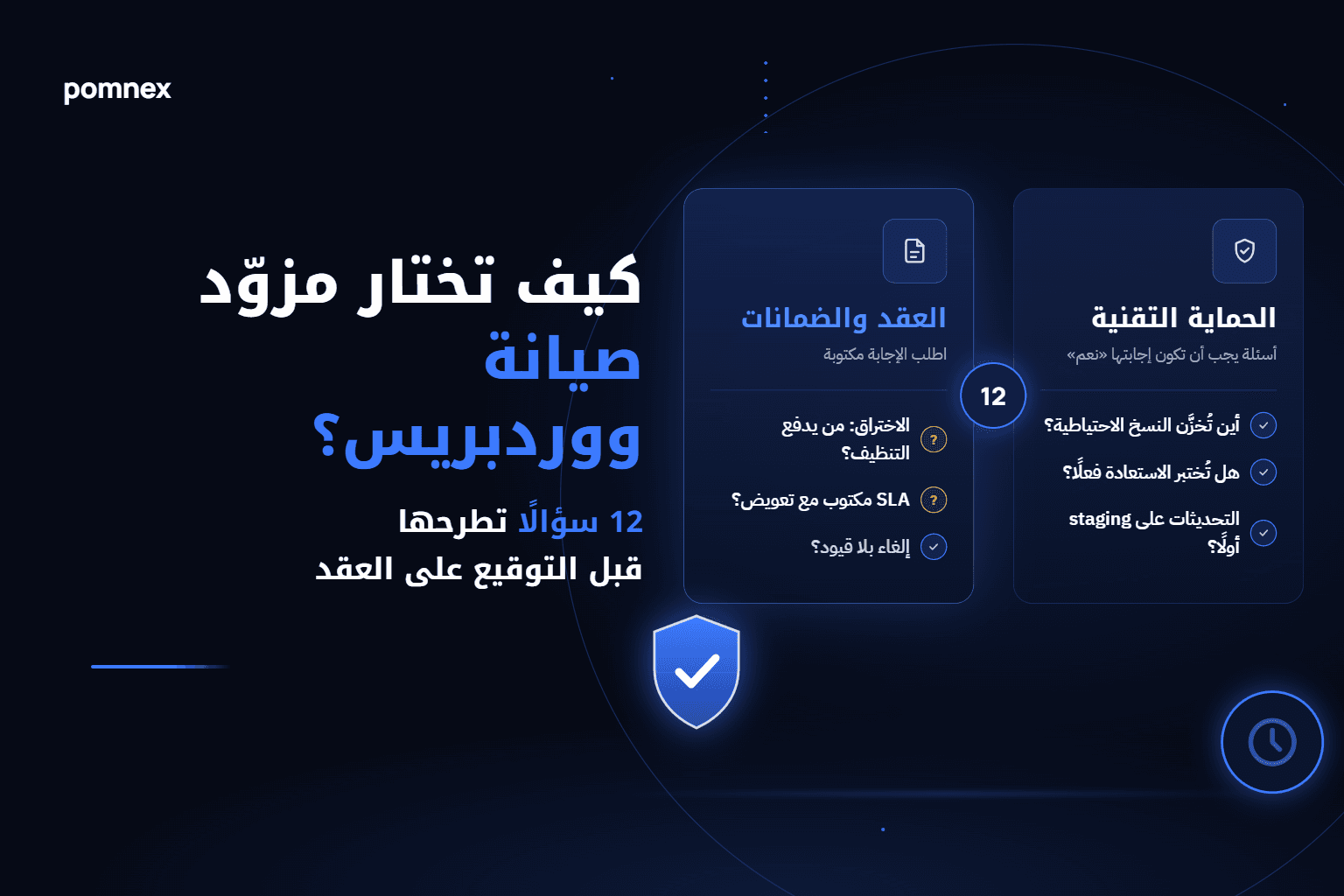
wordpress-maintenance
How to Choose a WordPress Maintenance Provider: 12 Questions to Ask Before You Sign
Before you sign with a WordPress maintenance provider, ask: where are backups stored, are restores tested, are updates staged first, who pays when you're hacked? An honest checklist plus a comparison of provider types.
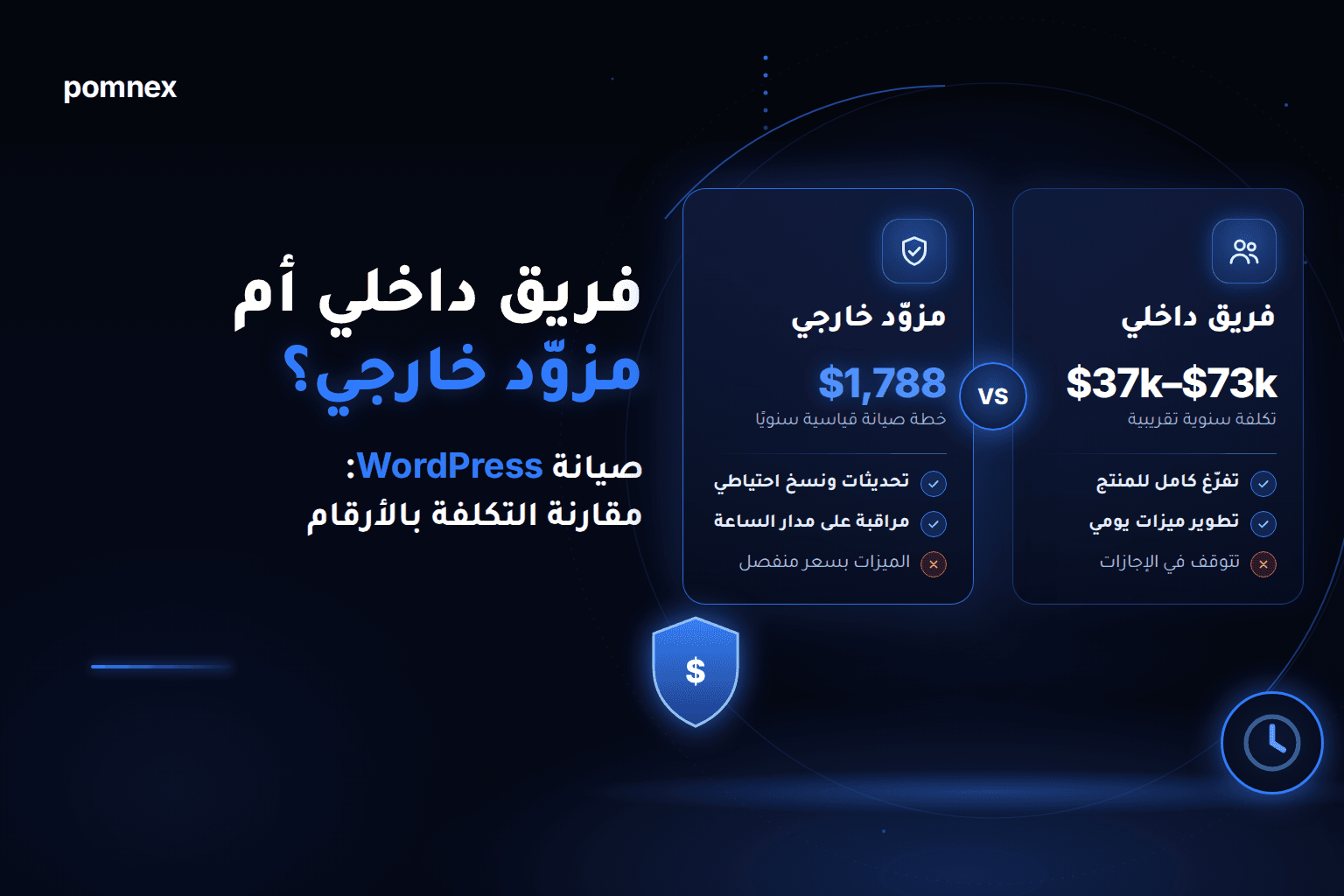
wordpress-maintenance
In-House WordPress Developer vs. Outsourced Maintenance: The Real Cost, in Numbers
Hire a WordPress developer or outsource maintenance? We compare published salaries in the UAE, Saudi Arabia, Germany and the UK with a $149/month plan, and explain when an in-house team wins