
WooCommerce Maintenance: What's Different From a Regular WordPress Site
WooCommerce maintenance isn't regular WordPress maintenance. Learn what's different: updates that break checkout, staging before every update, failed-order monitoring, and backups for a database that changes every minute.

When a brochure WordPress site goes down for an hour, the cost is usually a bad impression on a few visitors. When your store's checkout breaks for an hour, the cost is orders that never completed and money that never arrived. That's why WooCommerce maintenance can't be a copy of ordinary WordPress maintenance. The basics are the same (updates, backups, monitoring), but how you carry them out on a store is fundamentally different.
This article focuses on what actually matters for stores: updates that break checkout, a staging environment before every update, monitoring failed orders, and backing up a database that changes every minute. At the end you'll find a checklist of what should be inspected on every maintenance visit.
New to the topic? Start with our guide, What Is WordPress Website Maintenance? A Complete Guide for Businesses, then come back here for the store-specific details.
Why regular WordPress maintenance isn't enough for a WooCommerce store
A regular website is mostly static content: pages and posts that change now and then.
A store is a live system: cart, checkout, stock, shipping, tax, transactional emails, and external payment gateways talking to your site in the background. Each of those plugins updates on its own schedule, and a conflict between any two of them tends to surface in the most sensitive place of all: the checkout page.
The bottom line: for a store, the question isn't "is the site up?" but "does the purchase path work from the first click to the order confirmation email?"
Updates that break checkout
Most store failures don't come from a hack or a traffic spike. They come from a perfectly ordinary update. The usual suspects:
Payment gateway plugins: an update can change how the card form loads or how payment confirmations (webhooks) are received. The result: the customer pays, and the order stays "Pending payment".
Theme template overrides: many themes replace WooCommerce template files with their own copies. When WooCommerce updates and the theme's copy doesn't, fields can disappear or steps can break. The WooCommerce System Status report flags these outdated templates explicitly, as described in the official System Status Report documentation.
Classic checkout vs. block-based checkout: some older extensions don't support the block checkout, so their fields or shipping options silently vanish with no error message.
Caching and performance plugins: a bad setting after an update can cause the cart or checkout to be cached, so one customer sees another's cart, or payment fails.
JavaScript conflicts: a single plugin update can break the checkout script, so the customer clicks "Place order" and nothing happens.
How to update store plugins safely
Don't enable auto-updates for WooCommerce itself, or for payment and shipping plugins. These updates are applied deliberately, after testing.
Update sensitive plugins one at a time, so if something breaks you know immediately what caused it.
Keep a regular cadence: in its guide to updating WooCommerce, WooCommerce recommends a monthly cadence for most stores, with security fixes applied sooner.
Pick your update window carefully: away from peak hours, sales, and ad campaigns.
A staging environment before every update isn't a luxury
A staging environment is an exact copy of your store running at a separate address. You apply updates there first and test the purchase path before touching the real store. On a brochure site it's a nice extra step; on a store it's the difference between finding a problem yourself and hearing about it from a customer.
Rules you shouldn't break on a store's staging site
Switch payment gateways to test (sandbox) mode so no real money is charged during testing.
Stop customer emails, or route them to a test inbox, so no real customer gets an email about a fake order.
Never push the staging database to the live store. New orders arrived on the live store while you were testing, and overwriting it with the staging database wipes them out. Once testing passes, you push the updates, not the data.
Block search engines from indexing staging so a duplicate copy of your store doesn't show up in results.
What to test on staging
Add a simple product and a variable product (sizes/colors) to the cart.
Apply a coupon.
Calculate shipping and tax for more than one address.
Place a test order with every active payment gateway.
Confirm the customer order email and the admin new-order notification both arrive.
Check the order appears correctly in the dashboard, and try a refund if you can.
When you apply the update to the live store, WooCommerce recommends putting the store in "Coming soon" mode for the short update window, so no customer is halfway through checkout while files and the database are changing.
Monitoring failed orders: the signal uptime monitoring can't see
An uptime monitor asks one question: does the page respond? The homepage can respond perfectly while no customer can complete a payment. Store monitoring needs an extra layer that looks at the orders themselves:
The share of "Failed" orders: a sudden jump after an update usually points to the payment gateway.
A build-up of "Pending payment" orders: if customers are paying but orders aren't moving to "Processing", payment confirmations (webhooks) are probably not reaching your site.
Fewer orders than usual: a day with zero orders on a store that normally gets dozens deserves an immediate look, even if no error appears anywhere.
WooCommerce logs: the Logs section of the status page keeps fatal errors and payment gateway logs, and it's the first place to open an investigation.
Scheduled actions: WooCommerce relies on background scheduled tasks (emails, stock updates, subscriptions). Piles of failed or overdue actions mean something in the background has stopped.
The key idea: always compare against your store's normal baseline. A number on its own says little; a sudden change after an update or configuration change is what exposes a failure early.
To watch uptime, SSL certificates, domains, and pending updates across several sites from one dashboard, we're building Pomnex Pulse. Until it launches, monitoring is part of our maintenance plan.
Backing up a database that changes every minute
On a regular site, a daily backup means that in the worst case you lose a post or an edit. On a store, restoring a daily backup can wipe every order placed since that backup: customer names, addresses, amounts paid, and stock levels.
What changes in a store's backup strategy
More frequent database backups: files don't change much, but the database changes with every order. Back them up on different schedules, and set the database frequency by order volume: the more orders, the shorter the acceptable gap between two backups.
Make sure the order tables are included: modern stores keep orders in dedicated tables under High-Performance Order Storage (HPOS). A backup tool that skips non-standard tables will give you an incomplete copy without you noticing.
A backup before every update: no update touches the live store without a fresh backup of files and database.
Store backups off the server: a backup on the same server is lost with it. The WordPress backup handbook recommends keeping several recent copies in different locations.
Actually test restores: a backup you've never restored is just an assumption.
Restoring a store isn't a single button
If you need to roll back after a failed update or a hack, don't restore the full database straight over the live store. First export the orders and customers created after the backup date, then restore, then re-import what would have been lost.
What gets checked on every WooCommerce maintenance visit
This is the checklist we recommend for every maintenance round on a store:
A fresh backup of files and database before any change, verified as complete.
Updates to WooCommerce, plugins, and theme in a deliberate order, with sensitive plugins (payments, shipping, subscriptions) updated one at a time.
A System Status review: outdated theme templates, pending database updates, and warnings.
A full test order after updating: cart, coupon, shipping, payment, confirmation email.
A review of failed and pending orders since the last visit, compared with the normal rate.
A review of error logs and overdue or failed scheduled actions.
A security check: unexpected file changes and known vulnerabilities in installed plugins.
A performance check: load time on product, cart, and checkout pages, because a slow checkout means abandoned carts.
A written summary: what was updated, what was found, and what needs a decision from the store owner.
This is exactly the kind of work covered by Pomnex WordPress Care & Maintenance: core, plugin, and theme updates; scheduled backups of files and database; security, uptime, and performance monitoring; a check of the site after every update round; and fixes for update-related breakage included in the plan, not billed separately. WooCommerce stores are covered by the standard plan with extra care around updates, while large stores and complex checkouts are priced individually. You can also read how we work before deciding.
When does your store need more than maintenance?
Maintenance keeps your store running the way it is. If you need custom business logic, such as special pricing rules, a connection to an accounting or inventory system, or a feature no existing plugin offers, that's development work. In that case the answer is custom WordPress plugin development, rather than stacking generic plugins that raise the odds of a conflict with every update.
Frequently asked questions
Is WooCommerce maintenance different from regular WordPress maintenance?
Yes. The tools are mostly the same, but a store needs its purchase path tested after every update, more frequent database backups, and monitoring of failed orders, not just site uptime.
Can I turn on auto-updates for my store's plugins?
For some low-risk plugins, yes. It isn't recommended for WooCommerce itself or for payment, shipping, and subscription plugins. Those are updated after testing on staging.
How often should a WooCommerce store be backed up?
It depends on order volume. The rule of thumb: the gap between two backups should never exceed the number of orders you could tolerate re-entering by hand. And in every case, take a backup before any update.
The site is up but orders have stopped. Where do I start?
Start with the WooCommerce logs and the payment gateway log, then check for orders stuck in "Pending payment", then review the most recent update applied to the store. In most cases the cause is one of those three.
Conclusion
WooCommerce maintenance isn't WordPress maintenance plus one extra plugin. It's maintaining a system that handles money and customer data every minute: updates tested before they go live, a staging environment that protects checkout, monitoring that watches orders and not just the homepage, and backups built for a database that never stops changing.
If you'd rather have a team that knows your store and its history handle this, see the WordPress Care & Maintenance plan or get in touch to talk about your store.
Related articles
wordpress-maintenanceWordPress Security
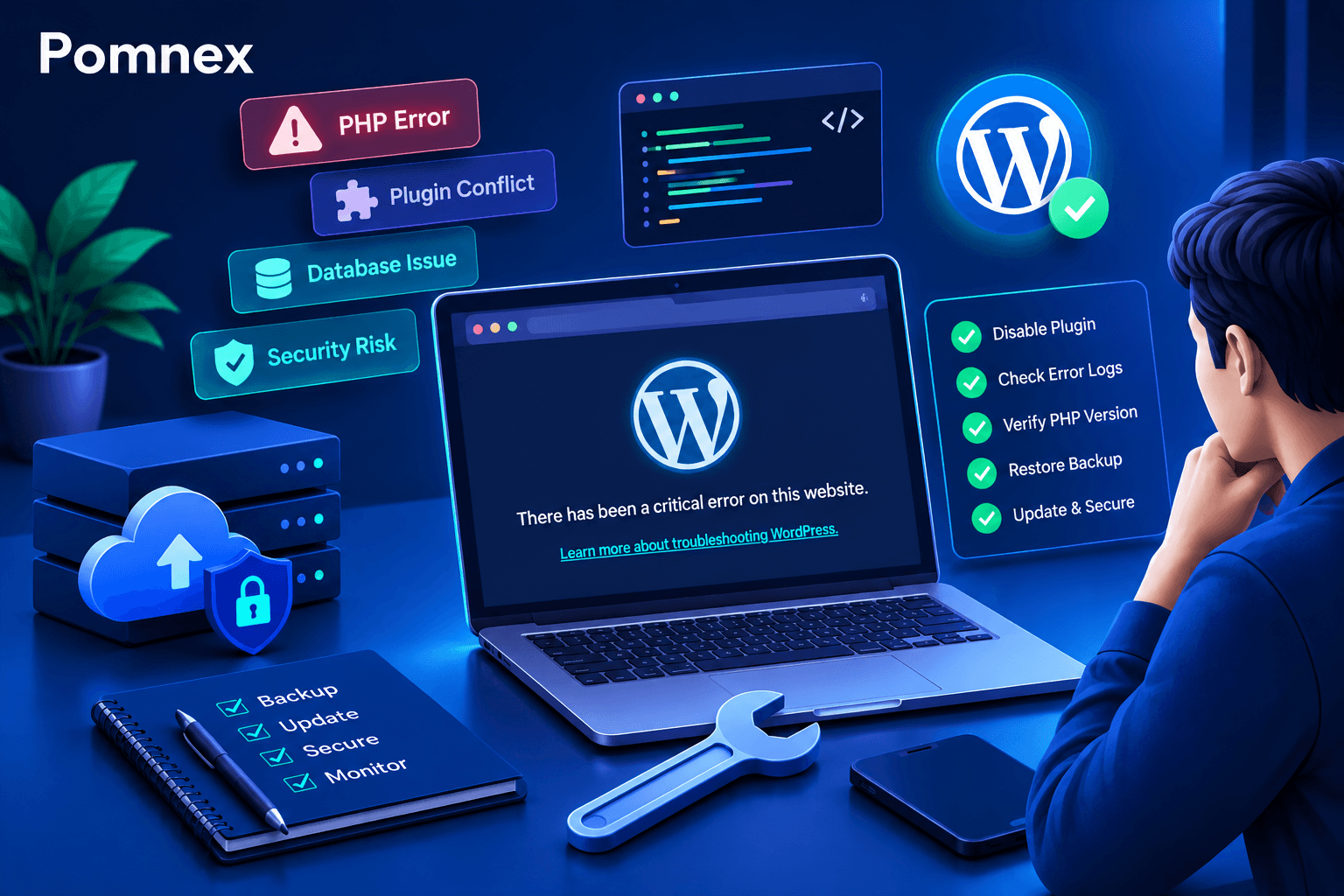
How to Fix the WordPress Critical Error After a Plugin Update
Did a plugin update trigger a critical error on your WordPress site? Learn how to identify the cause, check error logs, disable the faulty plugin, and safely restore your website.
wordpress-maintenance
WordPress Site Health Check: 9 Tests Every Website Owner Can Run
Learn how to check your WordPress site's health with practical tests for performance, security, email delivery, broken links, scheduled tasks, and website functionality.
wordpress-maintenance
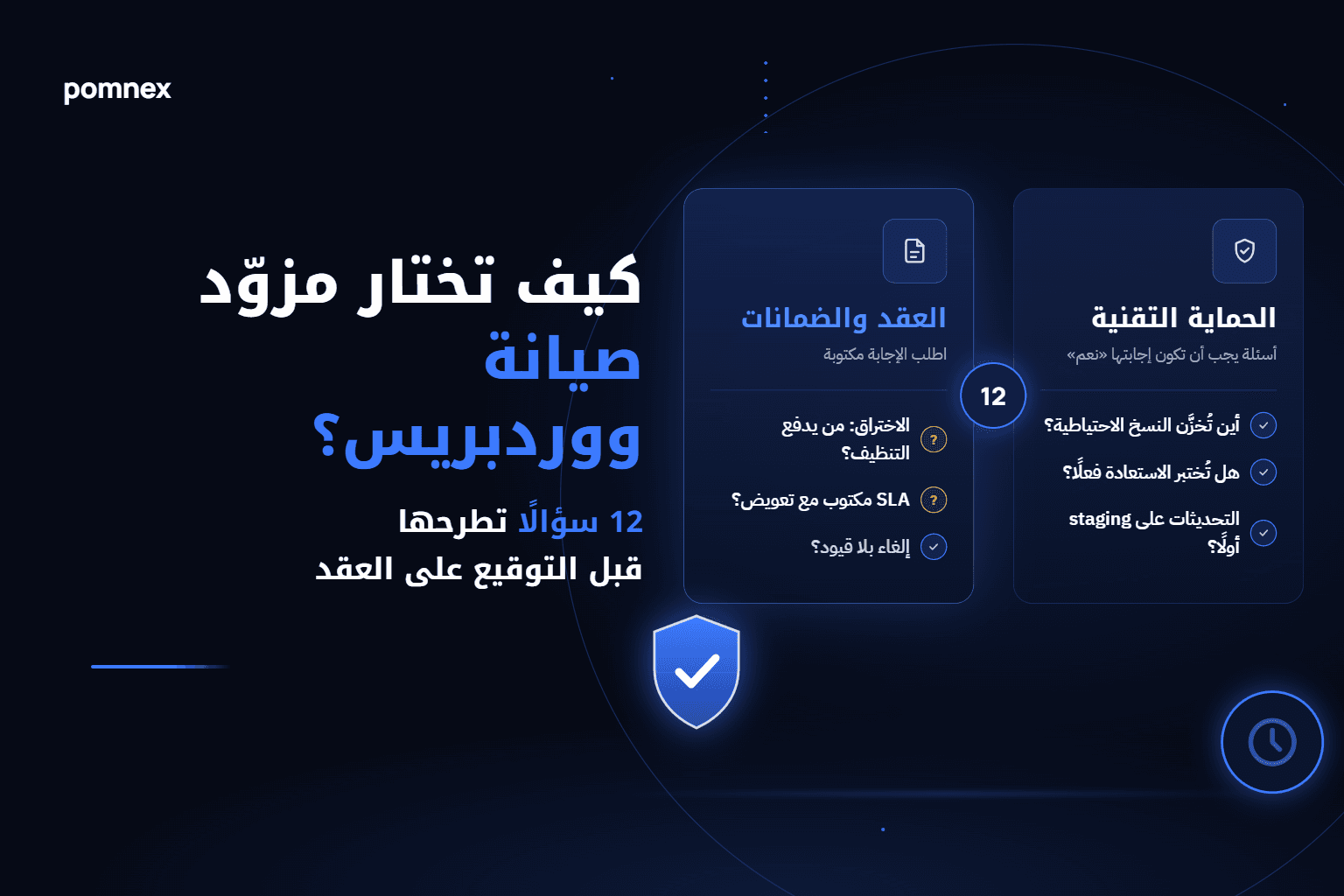
How to Choose a WordPress Maintenance Provider: 12 Questions to Ask Before You Sign
Before you sign with a WordPress maintenance provider, ask: where are backups stored, are restores tested, are updates staged first, who pays when you're hacked? An honest checklist plus a comparison of provider types.