
WordPress Site Broken After an Update? How to Fix It
Did your WordPress site stop working after a plugin or theme update? Learn how to diagnose the error, restore access, and fix the problem safely.
WordPress Site Broken After an Update? How to Fix It
Your WordPress website was working normally until you updated a plugin or theme. A few minutes later, the homepage stopped loading, parts of the design disappeared, or WordPress displayed a critical error message.
This can be especially stressful if your website generates leads, receives customer orders, or supports your daily business operations. However, a WordPress site that breaks after an update is not necessarily hacked, and the problem does not automatically mean your data is lost.
The cause could be a plugin conflict, an incompatible theme, a PHP error, or an update that did not complete correctly.
Instead of deleting plugins or restoring a backup immediately, follow a structured troubleshooting process. This guide explains how to identify the cause, restore access safely, and reduce the risk of the same problem happening again.
Why Does a WordPress Site Break After an Update?
WordPress websites rely on several components working together, including WordPress core, themes, plugins, PHP, and server configuration. When one component changes, another component that depends on it may stop working as expected.
Plugin conflicts
Two plugins may interfere with each other or depend on functionality that changed in a newer release. Sometimes the conflict appears only when a visitor performs a specific action, such as logging in, submitting a form, or opening a particular page.
Theme compatibility problems
A WordPress or plugin update can expose problems in your active theme or child theme. You might notice missing elements, broken layouts, or a PHP error that prevents the page from loading.
PHP version incompatibility
WordPress plugins and themes use PHP code that runs on your server. If a component relies on a function that is no longer supported by your PHP version, it may trigger an error that interrupts the website.
An incomplete update
An interrupted update may leave files missing or partially replaced. In this case, the problem may come from an incomplete installation rather than a compatibility issue.
Caching problems
Not every issue that appears after an update is caused by broken code. Your browser, caching plugin, hosting environment, or CDN may continue serving outdated files, causing an old design or incompatible JavaScript to appear.
How to Fix a WordPress Site After an Update
Before making changes, determine whether the problem affects the entire website or only a specific feature. Avoid applying every possible fix at once. Test the website after each change so you can identify what actually resolves the issue.
Step 1: Identify Which Part of the Website Is Broken
Open the homepage in a private browser window, then test an internal page and the WordPress login screen.
If the homepage works but the dashboard does not, the issue may involve an administrative plugin, permissions, or an error triggered while loading the dashboard.
If the dashboard works but the frontend is broken, investigate the active theme and plugins responsible for rendering the pages.
If the entire website displays a critical error or a blank screen, you may need WordPress Recovery Mode or access to your hosting file manager or FTP.
Record the error message, when the problem started, and which plugin or theme was updated immediately beforehand. These details can help narrow down the cause.
Step 2: Create a Backup Before Making Changes
If you have a recent backup, confirm that it includes both website files and the database. Ideally, verify that the backup can actually be restored.
If you do not have a backup, try to create copies of your files and database before making further changes, provided the website's condition allows it.
Do not restore an old backup automatically. On an online store, restoring an older database may erase orders or customer information created after the backup was taken.
If the website is still receiving new data, plan the recovery carefully and test the restoration process in a separate environment whenever possible.
Step 3: Use WordPress Recovery Mode
When a plugin or theme causes a critical PHP error, WordPress may send an email to the site administrator containing a link to Recovery Mode.
Open the email and review the error details. If Recovery Mode is available, you may be able to access the dashboard and deactivate the component responsible for the problem.
Once you regain access, temporarily deactivate the suspected plugin or theme and test the website again.
Read the official WordPress Recovery Mode documentation to learn how this feature works.
If you do not receive the email or cannot access the dashboard, continue to the next step.
Step 4: Disable the Plugin Causing the Problem
If you can access the dashboard, open the Plugins screen and deactivate the plugin that was updated before the failure. Then reload the website and check whether it works.
If the dashboard is unavailable, use your hosting file manager or FTP to access this directory:
wp-content/plugins
If you know which plugin is responsible, temporarily rename its directory so WordPress cannot load it. Keep the original directory name so you can restore it later if necessary.
If you do not know which plugin caused the problem, you may need to deactivate plugins temporarily and reactivate them one at a time, testing the website after each change.
Be careful when disabling all plugins. Essential functionality such as contact forms, payment processing, and membership features may stop working. Use this method for diagnosis and restore the required functionality as soon as possible.
For more guidance, consult the official WordPress troubleshooting guide.
Step 5: Check the PHP Error Logs
If the problem persists, PHP error logs may help identify the file or function responsible for the failure.
Start with the error logs available in your hosting control panel. You may also find wp-content/debug.log if WordPress debugging was already enabled.
In a staging environment, you can use the following WordPress debugging constants:
WP_DEBUG
WP_DEBUG_LOG
WP_DEBUG_DISPLAY
Configure logging so errors are recorded without being displayed to visitors. Showing detailed PHP errors on a live website is not recommended because they can expose internal paths and technical information.
After enabling logging, reproduce the issue and review the entries recorded at the same time.
If the log mentions a plugin or file path, treat that as a useful clue rather than conclusive proof. The underlying problem may involve a missing dependency or a conflict with another component.
For configuration details, see the official WordPress debugging documentation for developers.
Once troubleshooting is complete, disable any debugging settings you no longer need and prevent public access to error logs.
Step 6: Test the Theme and PHP Compatibility
If disabling the suspected plugin does not resolve the problem, investigate your active theme and child theme.
Ideally, test a current default WordPress theme on a staging copy of your website. If the problem disappears, the original theme or one of its customizations may be responsible.
If the error points to PHP compatibility, check the requirements of WordPress, your theme, and your plugins before changing the PHP version. Do not make an untested change on the live website, as it could break other components.
If several components were updated at once, test them individually rather than rolling back everything immediately. This makes it easier to identify the change that triggered the failure.
Step 7: Clear the Cache and Test Essential Features
After fixing the underlying error, clear the relevant caches in your caching plugin, hosting environment, or CDN.
Open the website in a private browser window and verify that the layout, CSS, and JavaScript load correctly.
Do not stop after checking the homepage. Test login, internal links, contact forms, search, and any feature that matters to your business.
If you run an online store, test checkout and order recording in a safe environment. Do not make real financial transactions just to confirm that the website works.
How to Prevent WordPress Update Problems in the Future
No maintenance process can guarantee that a website will never break. However, a structured update process can reduce the risk and make problems easier to diagnose.
Test updates before deploying them
Maintain a staging environment that closely matches your live website. Test significant updates there before applying them to the site your customers use.
Keep restorable backups
Do not rely only on automatic backup notifications. Confirm that backups include the required files and database, store a copy outside the website environment, and periodically test restoration.
Update components in stages
If your website depends on custom plugins or sensitive integrations, updating components in stages makes it easier to identify the cause when something fails.
Monitor important pages after updates
Check the pages your business depends on, including login, contact forms, checkout, and other critical workflows. A working homepage does not guarantee that the rest of the website is functioning correctly.
Keep a record of updates and errors
Record which components were updated, what changes were made, and which errors appeared. This history can make recurring issues much easier to diagnose.
For a broader overview of organizing updates, backups, and monitoring, read our guide to WordPress website maintenance.
If you manage an online store, our guide to WooCommerce maintenance explains why checkout testing, order monitoring, and frequently changing data require additional care.
If the problem involves a custom plugin or a third-party integration, our guide to custom versus off-the-shelf WordPress plugins can help you understand when a tailored solution may be appropriate.
When Should You Get Professional Help?
If the critical error continues, the database becomes unavailable, or the problem affects orders and payments, avoid making further changes without understanding their consequences.
The same applies if you cannot identify the file responsible for the error or your website relies on complex custom code with dependencies you do not fully understand.
A structured technical investigation can identify the underlying cause before additional changes make the problem more complicated.
If you need help managing updates, monitoring your website, and resolving technical maintenance issues, explore Pomnex's WordPress maintenance service.
Conclusion
A WordPress site that breaks after an update does not necessarily require deleting every plugin or immediately restoring an old backup.
Start by identifying which part of the website is affected, protecting your data, and using Recovery Mode or error logs to investigate the cause. Test components systematically, then verify that essential features work after the repair.
The goal is not simply to make the homepage load again. It is to restore a stable website while protecting its data and the functionality your business depends on.
Related articles
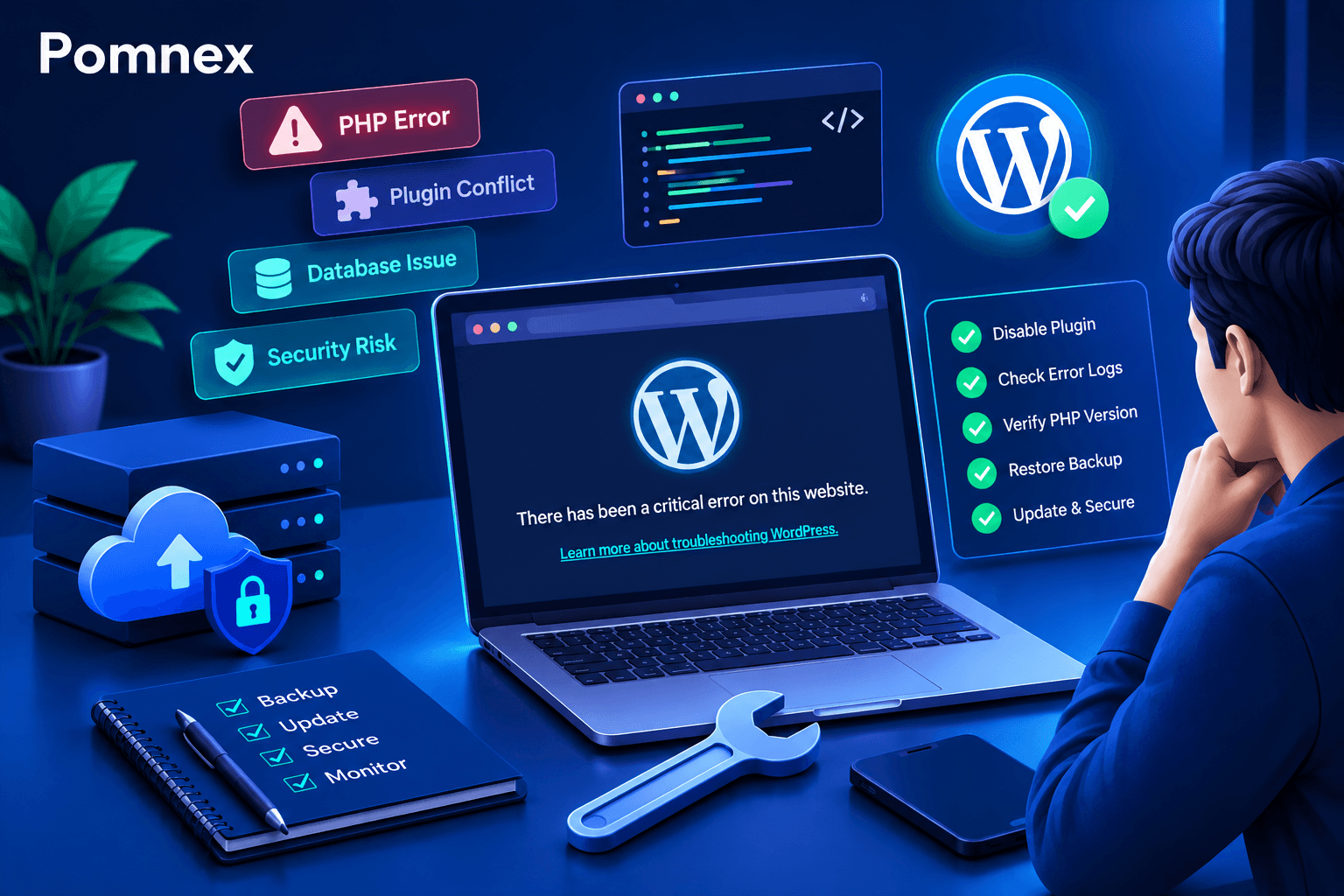
wordpress-maintenanceWordPress Security
How to Fix the WordPress Critical Error After a Plugin Update
Did a plugin update trigger a critical error on your WordPress site? Learn how to identify the cause, check error logs, disable the faulty plugin, and safely restore your website.
wordpress-maintenance
WordPress Site Health Check: 9 Tests Every Website Owner Can Run
Learn how to check your WordPress site's health with practical tests for performance, security, email delivery, broken links, scheduled tasks, and website functionality.
wordpress-maintenance
How to Choose a WordPress Maintenance Provider: 12 Questions to Ask Before You Sign
Before you sign with a WordPress maintenance provider, ask: where are backups stored, are restores tested, are updates staged first, who pays when you're hacked? An honest checklist plus a comparison of provider types.